How to Compress Large Scanned and Handwritten PDFs for LMS Assignment Uploads
2026-10-03 · 3 min read
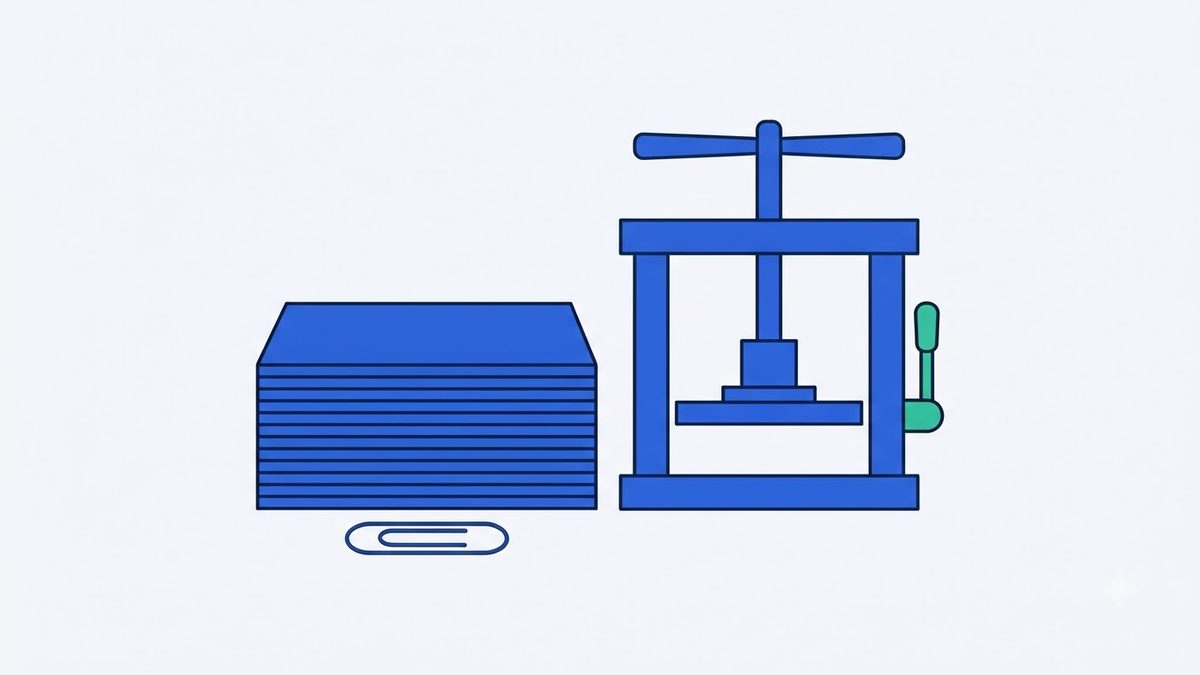
As mid-semester exams and assignment deadlines approach in mid-October, university students face a familiar bottleneck: submitting large problem sets, lab reports, and lecture notes. When you write out complex mathematical proofs, engineering schematics, or annotated readings on a tablet and export the pages to PDF, the resulting file often balloons to 30 MB or 50 MB. However, most university Learning Management Systems (LMS)—such as Canvas, Blackboard, Moodle, or custom campus portals—enforce strict upload caps of 10 MB or 20 MB per submission. When the deadline is only minutes away, resizing these documents quickly without rendering your handwriting illegible becomes a critical task.
Why Scanned and Handwritten Tablet PDFs Are So Large
Documents exported from tablet note-taking applications (such as GoodNotes, Notability, or OneNote) and multifunction office scanners have a fundamentally different file structure from standard text-based PDFs. Instead of storing text characters as lightweight digital font codes, these applications render handwriting, highlights, and margin sketches as high-resolution raster image layers stacked across every page. As your page count grows from a handful of problem sets to an entire semester review, the cumulative image payload multiplies rapidly.
Traditional PDF compression algorithms that focus on removing embedded metadata or streamlining font subsets do very little to reduce image-heavy documents. Conversely, applying aggressive generic compression often degrades image clarity to the point where small subscripts, mathematical fractions, and hand-drawn graphs blur together, making grading difficult for instructors. Reducing file size effectively requires a tool designed specifically to optimize page image structures while preserving essential visual clarity.
How to Reduce PDF File Size for Assignment Submissions
To meet strict LMS upload requirements without sacrificing legibility, dragging your assignment document into Compress PDF re-renders each page into an optimized JPEG format. The tool allows you to select from three standard resolution presets—100, 150, or 200 DPI—and fine-tune image quality across a slider range from 40 to 95. This granular control lets you dial in the exact balance between file size and visual sharpness needed to slip comfortably beneath institutional file caps.
Tool for this postCompress PDFShrink scanned or image-heavy PDFs by re-rendering pagesNo upload · Free · No installOpen →For black-and-white handwritten notes, monochrome problem sets, or textbook scans, enabling the grayscale option removes redundant RGB color channels to achieve substantially smaller file sizes. It is important to understand the underlying mechanics: because this process works by rasterizing pages into compressed JPEG images, it is intended specifically for scanned papers, image-heavy documents, and tablet handwriting. Pure text-based PDFs created in word processors will not shrink and may even increase in size. Additionally, the resulting output pages are rendered as images, meaning text will not be selectable or searchable.
Browser-Based Processing and File Privacy for Submissions
Academic assignments frequently contain sensitive personal data, including your full name, student ID number, course enrollment codes, and unpublished research findings. Typical online conversion websites transmit your documents across remote servers to process them in cloud queues, raising privacy concerns and creating potential security risks. In contrast, Compress PDF executes all rendering and compression routines entirely inside your local web browser.
Your files never leave your computer or tablet, and no data is uploaded to external servers. Because processing relies on your local device hardware rather than remote infrastructure, you bypass server queues and network bottlenecks entirely—even during late-night submission windows when campus network traffic surges right before midnight deadlines.
Preparing Your Final File Before the Midterm Deadline
Attempting to upload massive 40 MB files during peak submission hours often results in browser timeouts, severed network connections, or incomplete LMS submissions. Before submitting your coursework, pass your document through Compress PDF using the 150 DPI preset and a moderate quality setting to bring the total file size well under the 10 MB threshold. Verifying your compressed output ensures your handwritten diagrams remain crisp, your file uploads smoothly on the first attempt, and your assignment is logged on time.
Try it in your browser nowCompress PDFShrink scanned or image-heavy PDFs by re-rendering pagesNo upload · Free · No installOpen →